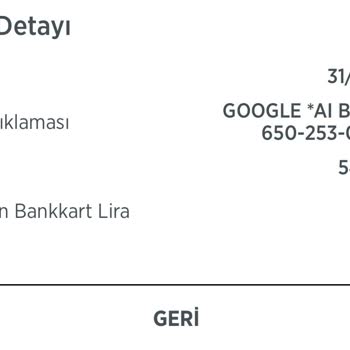
A charge labeled “GOOGLE*” appeared on my card and I don’t recognize it — how can I track the purchase in Google Play?
75 Views
If “GOOGLE*” appears on your card and you don’t recognize the charge and want to track it in Play:
• Log in to payments.google.com with all your Google accounts and check “Activity”
• In Google Play, go to Payments & Subscriptions → Order History
• Look for a transaction ID that usually starts with GPA.XXXX
• Check for active subscriptions (apps, games, cloud storage, etc.)
• Verify whether a family member uses your account or if there are linked devices
If you can’t find the purchase:
• Change your password and enable two-step verification
• Check whether the charge belongs to another Google account where your card is saved
• Take screenshots of the charge on your bank statement
Contact Google Play support stating it may be an unauthorized charge:
• Include the date, amount, and last 4 digits of your card
• Attach screenshots and request a formal investigation
Ask them to:
• Identify the account associated with the charge
• Confirm whether it was a one-time purchase or subscription
• Process a refund if it was unauthorized
• Provide a case number and response timeframe
If the problem remains unresolved after contacting support, consider filing a complaint on Xolvie to raise awareness and pursue a resolution.
I am unable to cancel my CapCut subscription that was originally started through Google Play. I signed up for the free t...rial, during which I was charged approximately ₺30, and I assumed the subscription would automatically expire after the trial period. Instead, it continued to renew automatically.
Three unauthorized purchases have been charged to my Google Play account linked to my Türk Telekom line — all made witho...ut my knowledge or consent. My bill normally runs around $9, but due to these unauthorized charges, my upcoming bill shows $26. Two of the transactions occurred on May 28th and one
I recently noticed that on 29 May 2026, I was charged through Google Play Store for a Telegram Premium subscription, eve...n though I have never subscribed to Telegram Premium or used my Telegram account for any business purposes. The amount deducted was 200 Kenyan shillings. I did not approve any Tele
I noticed an unknown and unauthorized charge of 29.99 on my bank account today, 27 May, linked to Google Play. I do not ...know which app or service this payment is for, and I did not knowingly approve or authorize any such purchase. The charge was taken from my bank account, which I have held for 13 y
On 8/4/2026, I made a payment of ₹135 through my Fampay account to “Google Play Asia” because I thought I was purchasing... a Google Play redeem code. The amount has been successfully deducted from my Fampay account and the payment went through, but I did not receive any Google Play code or any benefit
I am writing regarding an unauthorized charge that has been made to my Chime/Stride Bank card through Google Play. On Ma...rch 30, a charge of 7.95 USD appeared on my account. There were also about 3 or 4 previous attempts over the last 4 days to charge the same amount, but those did not go through bec
I recently noticed an unauthorized video subscription charge on my Google Play account, which I did not purchase or appr...ove. The charge appears on my statement dated March 20th in the amount of $29.94, and I only discovered it when I happened to check my phone. I use a Samsung A52, and I have no rec
On March 16, Google Play charged ₹500 to my account for an in-app purchase linked to my Google account email. I did not ...intend to make this purchase, and I do not want to pay for this transaction. I request that this ₹500 in-app purchase be fully refunded to me and that future in-app purchases on m
An unauthorized charge of $106 was made on January 25 from my bank card, which was saved on my child’s tablet, for an ap...plication called Draw It. Neither my spouse nor I entered our card information to purchase this app. The transaction was made entirely without my knowledge. As soon as I became awa
On February 14 at 10:54 PM, two separate charges of $3 each were made through Google Play for a TV+ subscription, totali...ng $6. Despite the charges, no membership was activated. Only one of the charges was refunded to me; the other $3 has still not been refunded. I contacted both Google Play and TV+
Unauthorized charges were made to my Halkbank Paraf credit card under the name “Google Avakin Life 3D London,” starting ...on February 13. These transactions were processed in multiple small amounts, occurring daily and sometimes several times per day, totaling approximately $58 in unauthorized charges
On February 17, 2026, a total of $89 was charged to my Ziraat Bank debit card, which is registered in my name, under the... description “LIDIO/Google.” The transactions were processed in multiple installments throughout the day — six separate charges of $2 each, along with one charge of $80. These tran
On October 15, 2025, an unauthorized transaction of ₺1,019.00 was charged to my credit card under the name “Lıdıo Google....” This payment was made without my knowledge or consent. Google Play should not be able to process a payment without user authorization. I request that the unauthorized amount be
On October 13, an unauthorized charge of ₺385 was withdrawn from my account through Lidio/Google Play. The transaction a...ppears under the name “Lidio Google Foto.” I have not started any subscription or membership related to this service, nor have I given any authorization or consent for such a payme
Without my knowledge or consent, ₺49.99 was withdrawn from my Garanti BBVA account by Lidio GO in both September and Oct...ober, even though I never applied for or started any subscription with this service. I only noticed this issue recently, and I have never signed up for Lidio GO or authorized any s
In September, a charge of ₺444.89 was reflected on my account through Paycell for a video application with no visible na...me on the Google Play Store. However, no such purchase appears in the store or in my payment history. The fee only shows up on my Paycell bill, and I have the receipt as proof. I f
I just found out that others bought things using my Google Play account without my permission or knowledge. I asked for ...a refund right away, and I've done it more than occasions, but I haven't gotten a clear answer or explanation. When I check the status of my refund, it's either ignored or automati
While I was asleep at night, ₺746.10 was withdrawn from my card by Google Play. I am a citizen of Azerbaijan, and 33 man...ats were withdrawn. I did not authorize this transaction, and I have no idea what it was for. Despite exercising my right to dispute the transaction, the money has still not been r
I purchased a subscription to the buddy.AI app on Google Play using the email address s********@gmail.com, and the new s...ubscription will begin on November 1, 2023. On the other hand, on October 31st, 2023, the Google Play app caused an unauthorized charge of 549.99 Turkish Lira to be taken from my c