My Apple iPad ran out of battery, and even after charging it for a while, it remains unresponsive. Why won't my iPad turn on?
64 Views
You may encounter issues where it refuses to turn on, displays a black or frozen screen, or gets stuck on the Apple logo during startup. When faced with these challenges, it's important to know how to troubleshoot and potentially resolve them:
Black or Frozen iPad Screen Troubles:
• Without Home button iPads:
Release the volume up button (next to the top button) quickly.
Quickly press and release the volume down button (farthest from the top).
Hold the top (power) button until your iPad restarts.
If your iPad remains unresponsive, charge it for an hour before trying again.
• For Home-button iPads:
Press and hold the Home and power buttons until the Apple logo appears.
If your iPad remains unresponsive, charge it for an hour and try again.
• For iPads with a Home button:
iPad Startup Stuck on Apple Logo:
Computer-connect your iPad. Launch Finder on macOS Catalina. MacOS Mojave or earlier, or PC, open iTunes.
Computer-identify your device.
• Without Home button iPads:
Quickly release the volume up button.
Quickly release the volume down button.
Hold the power button until your device restarts. Keep holding.
• For Home-button iPads:
Hold the Home and top buttons (power buttons).
Hold the buttons until the recovery mode screen appears.
When asked to restore or update, choose "Update."
Your computer will download iPad software. If this takes more than 15 minutes, your iPad may exit recovery mode, requiring steps 2-4 again.
All these above are suggestions. It’s better to ask Apple support for detailed guidance.
I took my iPad Pro 12.9 6th Gen to an Apple authorized service center five months before the warranty expired because it... wasn’t charging. Three hours later, they told me the charging port was faulty, there was physical damage, and it was considered user error, so the repair wouldn’t be covered under
I purchased an Apple iPad tablet along with the Apple Pencil. We used the tablet and pencil for studying, drawing, and p...laying games. After some time, we noticed scratches on the screen caused by the pencil, and the pencil's sensitivity started to decrease. I sent both the tablet and pencil to the w
My Apple iPad Air 4th Generation unexpectedly shut down and never turned back on, despite being only two years old. I to...ok it immediately to the authorized service center at Zorlu Center, where the Apple employees informed me that “your product has expired and won’t turn on again,” suggesting I buy
I purchased a MacBook Air from Teknosa, but right from the first use, it had a charging issue—stuck at just 1% despite b...eing plugged in. I took it back to Teknosa, and after about 40 days, they claimed the device was repaired. However, when I brought it home, the laptop wouldn’t start properly. For
I’ve been using the 2nd generation Apple Pencil with my iPad Air 5, but now it’s stopped working. Over the summer, I did...n’t use the pencil and kept it safely stored in its case to avoid any damage. Now that school has started, I took it out to use, but it won’t work. The Apple Pencil name flashes on
I am writing to address an issue with my iPad Pro (5th generation, 12.9-inch), which has stopped functioning. I purchase...d it 2-3 years ago, and it worked perfectly until the warranty expired. Following that, it ceased to charge and shut down. After seeking assistance from the service center, they sa
I am Delal from Turkey, and I am writing to report a terrible occurrence that occurred on January 31, 2024, while on a b...us. My iPad Air 5th generation and second-generation Apple Pencil were stolen, leaving me emotionally and financially devastated. I have the stolen items' receipts and serial numbe
I bought an iPad Pro 12.9 inch device on 16/10/2023 via pt technology and after a certain time it started to charge late..., it could take about 10 hours to charge 100%, I took it to Apple Akasya, I told my complaint, they said they would take care of it, they said they would notify me after the inspec
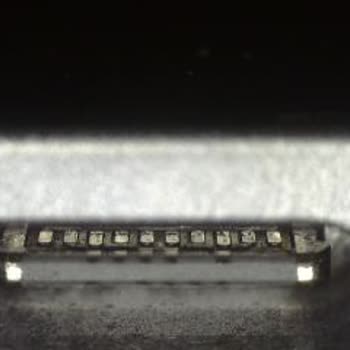
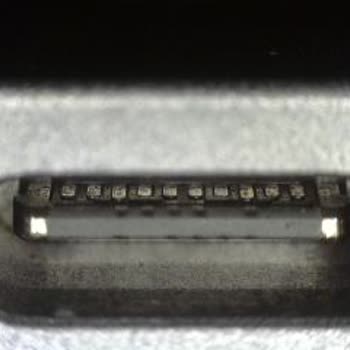
Apple iPad mini 6, 64 GB, serial number JX94Y3V4CR, Apple ID: gec******[email protected]. As the owner of the device, I starte...d having problems with circular pixels on it about 10 days ago. The device is still under warranty. I took my device to Ankara Gordion Troy, an authorized service center, to be che
I only use my iPad Pro 6th generation 12.9'' Tablet for studying, but after 1 hour it starts to heat up and contraction ...problem, the articles I write with my Apple Pencil appear on the tablet's screen after 1-2 seconds of writing. I am disturbed by this situation and it prevents me from working effi
A few years ago, I received a concerning "Your iCloud data is in danger" warning from Apple. I've been trying to get thi...s issue resolved for months now, but it's still affecting my iPad 7, rendering it unusable. As a result, my son can't access the device, and his credit card information used for ga
we have purchased an Apple iPad for our company and one of our co-workers was using it for business purposes. after he h...as left our company he returned the tablet but claimed he doesn't remember the id and password he used to find my phone. we have reached apple turkey for couple of times providing
I purchased an Apple MacBook Air M1. However, after properly shutting it down, it suddenly did not open. I took it to se...rvice, and they wanted a lot of money to replace the main board. But, ever since I bought it, I've treated it like a baby, protecting it from harm. There was no contact with liquid