The photos taken by the camera on my Samsung Galaxy smartphone appear blurry. How can I adjust the camera settings?
13 Views
If your Samsung Galaxy smartphone is taking blurry photos, you can adjust your camera settings to improve image quality as follows:
• Remove any camera lens covers or films. Clean the camera lens with a soft microfiber cloth to remove dirt and foreign particles. Make sure the camera lens is dry.
• The Samsung Galaxy Camera app may use tracking auto-focus, which can make photos look blurry. In the Camera app, click the gear icon in the upper-left corner and disable "Tracking auto-focus."
• Check if you're holding the camera too close to the subject, which can blur photos.
• Consider enabling "Shot suggestions" in Camera app settings. This feature uses machine learning to find optimal shot settings, reducing blurry images. Touch the gear icon and toggle "Shot suggestions."
• Samsung Galaxy users say Night Mode improves photo quality. Test this feature by opening the Camera app, tapping "More" at the bottom, and selecting "Night."
• Camera Assistant, a Samsung Galaxy app, lets you adjust camera settings to reduce shutter lag and improve photo quality. Install this app from the Galaxy Store, enable "Quick tap shutter," disable "Video recording in Photo mode," and prioritize image quality in "Capture speed."
• Resetting all camera settings to default may work if previous adjustments fail.
• Check the Camera app's settings menu for updates to optimize camera performance.
• Samsung Safe Mode can help you determine if a third-party app is causing camera focus issues
On 16.04.2026, I purchased a Samsung S26 Ultra from an authorized Samsung store in Turkey. From the first days of use, I... have been completely dissatisfied with the performance of the device, especially its camera. The device’s battery drains very quickly and the phone overheats even under normal use
I have been experiencing a serious focus issue with the rear camera of my Samsung Galaxy S21 Ultra for about 6 months. A...ll photos taken up to 3x zoom come out consistently blurry, while there is no issue at all when using 3x zoom or higher. This inconsistency is very noticeable and unusual. This pr
I purchased a Samsung Galaxy A36 phone from Teknosa Gebze Center on the evening of December 29, 2025. From the very firs...t use, the phone’s camera was defective. There are black wave-like marks on the screen, and the camera does not focus properly, which means I cannot use the camera as expected from
I delivered my Samsung S25+ phone to the İzmir Konak Samsung service center two weeks ago because of a pixel defect in t...he camera. Since my device is under warranty, I did not pay any fee. During my discussions with the service staff, I was informed that my device would be replaced with the S25 Ultr
For the past few days, the flashlight and camera flash on my Samsung A52s 5G have completely stopped working without any... apparent reason. There was no physical damage, no drops, and I haven’t made any major software changes that could explain this issue. Both the flashlight and the flash used durin
When I set an image as the home screen on my Samsung Galaxy S25 Ultra, the image quality drops significantly. Even thoug...h the original picture has no quality issues, it appears pixelated and blurry on the home screen. You can clearly see what I mean by looking at the black outlines around the charac

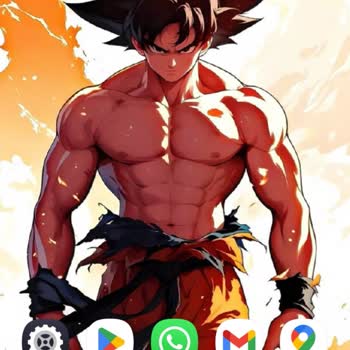
I recently purchased the Samsung S25 Ultra, expecting top-tier camera performance, but I am extremely disappointed. The ...photo quality has significantly dropped compared to previous models. Vibrancy, contrast, and sharpness are much lower, making images look dull and lifeless. Even iPhone and Chinese
I bought a Samsung A55 5G phone, but when I try to use the camera in apps, the photo quality drops to an extremely poor ...level. I have tried different apps, updated the software, and even reset the camera settings, but nothing has improved the situation. It is really disappointing to see such a poor
I contacted Samsung customer service to request installation of my new air conditioner. Two days later, your service tea...m called to inform me that the installation would be completed in 11-12 days. However, it has been 15 days and I have not heard from anyone. I'm concerned about whether the install
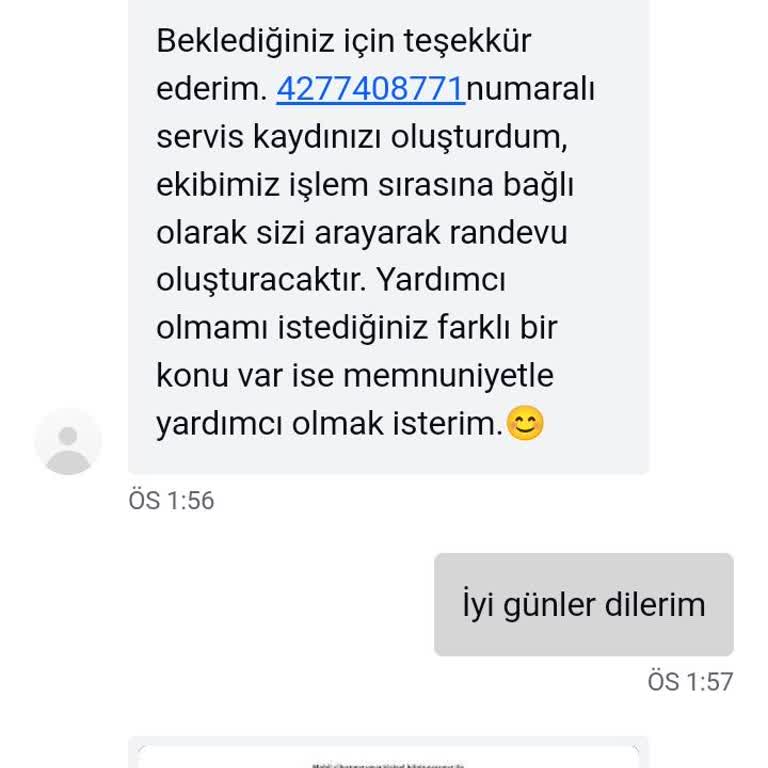
I purchased a Samsung 'Windfree' model air conditioner and scheduled an installation service on June 14th. The customer ...representative told me they would call to set up a time for the installation. I also contacted Samsung Turkey's WhatsApp line, and yesterday they informed me that due to high tempe
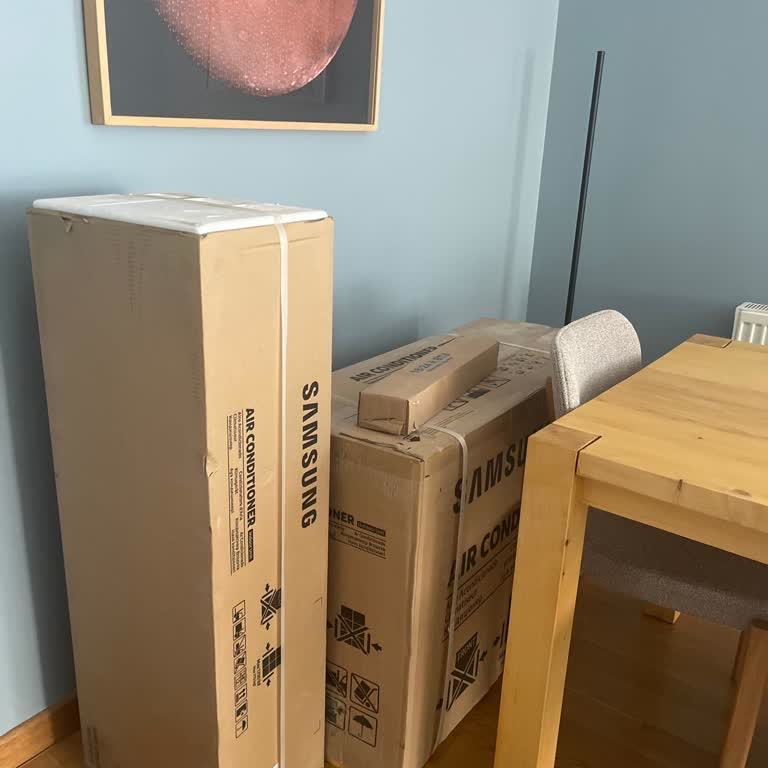
Hello, I am writing to address a new problem regarding a previous complaint that was not finalized. Initially, I reques...ted the shipment of my products. However, due to unforeseen circumstances, a family member who was supposed to be home was unable to be there. I asked to cancel the shipment that d
The video camera on my Samsung S24 Ultra vibrates excessively when turned, and the image is distorted. I've previously u...sed numerous Samsung devices, and this isn't common. Similar complaints can be seen on other forums. I'd want to seek an exchange or refund.
I just bought this Samsung TAB A9 Plus tablet, and I'm still waiting to hear back about my problem. Today, yet another i...ssue has come up: even though there is no USB connection, the tablet continues to show a warning about a USB connection. This is clearly visible in the video. I sent an email to Sa
I am the owner of a Samsung S22 Ultra, and after sending it to the authorized service center for a cracked screen, I end...ed up with a significant problem. Post-repair, the camera's clarity became a major concern. Surprisingly, even phones priced at ₺10,000 capture better photos. I'm sharing a sample

at the end of October, I got this phone, and just 15 days later, the front camera became blurry. When I sent it to the s...ervice, they insisted it was my fault and demanded 3/1 of the phone's value to fix it. This seems unjust, and I've noticed similar complaints on various websites. I mean, like a fo
I had a frustrating issue after I updated my Samsung M23 phone. Every morning, when I connect my fast charger to my phon...e, it only detects it as a regular cable charge. I've tried everything to fix this issue, but nothing has worked so far. It's confusing because every time my phone updates, it feel