Why does my ASUS laptop overheat during gaming, and how can I reduce the temperature of the CPU and GPU?
20 Views
During gaming, the load on the CPU and GPU increases significantly, which can cause temperatures in an ASUS laptop to rise to critical levels.
The main reasons are a cooling system clogged with dust, dried-out thermal paste, poor airflow, or excessive load from background processes.
Start by checking the cooling system. Clean the ventilation openings from dust using compressed air or a vacuum cleaner on the lowest power setting.
If the laptop has been in use for more than a year, replacing the thermal paste is often necessary—over time, it loses thermal conductivity and no longer transfers heat effectively.
Also pay attention to the surface the laptop is placed on. Soft surfaces block ventilation openings and increase temperatures. Use a hard desk or a cooling pad.
Check that the fans are working properly: under heavy load, they should run at high speed. In ASUS utilities such as MyASUS or Armoury Crate, you can enable Performance or Turbo mode to improve cooling.
Optimizing graphics settings can also reduce temperatures—lower ray tracing, shadow quality, and draw distance. In some games, enabling V-Sync helps reduce GPU load.
If temperatures remain high even under moderate load, a faulty fan or damaged heat pipe may be the cause, in which case professional diagnostics are required.
Proper cooling maintenance significantly lowers temperatures and extends the laptop’s lifespan.
I have had to send my Asus ROG Strix G614JI laptop in for warranty service three times in about four months, and none of... my issues have been fully resolved. I purchased the product from the Teknorya store at Teknosa. First, on September 3, 2025, I sent it in due to a processor overheating problem,
I purchased an Asus Zenbook ux325ea/kg230t laptop from the Media Markt online store. Over time, I began experiencing per...formance and overheating issues with the laptop. It is incomprehensible to face such problems while only using a web browser and Zoom. I encountered performance issues with this la
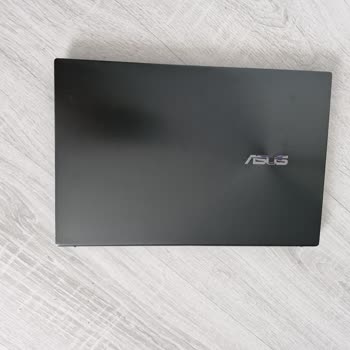
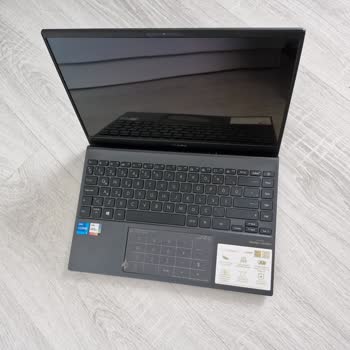
My Asus Zenbook 14 OLED UX3402ZA runs at 60 degrees Celsius in idle mode on normal fan settings, and the temperature spi...kes to 95-100 degrees when running programs. The build quality is extremely poor—the screen hinge creaks, and pressing on the chassis produces strange noises. The service center re
In May 2023, I purchased an Asus ROG G16 laptop and sent it for repair to SMS Infocom, an authorized Asus service center..., last month. I sent the product for repair on June 11, and it arrived today, July 2. It must have undergone extraordinary diagnostics and scientific experiments for three weeks. B
I'm having trouble playing FIFA 2023 on my Asus ROG Flow gaming laptop; it keeps freezing. When I reached out to Asus cu...stomer service, they told me to send an email. However, the answers I got were pretty basic and not really helpful, just like what you can find online. I demand effective and faste
Since purchasing my Asus X415M laptop, I've been dealing with frustrating freezing issues. I've had this laptop for just... a few months, but I'm still dealing with freezing problems. It's like a total emergency, you know? I really need a solution to this problem right away.
After purchasing the Asus G614JI-N3188 Gaming Laptop on April 27, I noticed serious performance issues while gaming. Com...paring my measurements with online test videos for the same model revealed a significant problem. Despite choosing Asus for its advertised cooling capabilities, I experience temper
I recently purchased the ASUS TUF Gaming F15 with promising specs, but within three weeks, it has become a tech nightmar...e. The battery charges in 10 minutes, only to deplete rapidly, and occasional errors leave the screen unresponsive. Despite its warranty until 2025, I regret choosing ASUS. The abs
I bought an ASUS TUF laptop on September 22, 2023. It has an RTX 4050 graphics card, an AMD Ryzen 7 processor, a 144Hz s...creen, and 8GB of RAM. I'm an engineering student and I rely a lot on programs like Solidworks and AutoCAD. I ended up spending around ₺33,000 on them, paying in monthly installmen
I recently sent my Asus X515JA laptop in for warranty service because it was constantly overheating, had LED screen glit...ches, and had fan issues that wouldn't stop. They claimed to have resolved the overheating and fan problems with a screen replacement. At first, when I got my laptop back, it didn'