Xolvie Resolution Specialist10 Aralık 2025 11:12
Here is how to properly transfer logs and synchronize data:
Log in to DJI Fly with the same account
Flight logs are tied to your profile.
If you use a different account on another phone, the data will not appear.
Open the Flight Data Center in the app
This section contains all your flight records.
Enable the sync function (menu button in the top-right corner).
Turn on the internet and wait for the files to upload to DJI Cloud
Flight logs can be large — wait until synchronization reaches 100%.
If your internet connection is unstable, the sync process may stop.
After uploading, open DJI Fly on another device
Log in with the same account.
Tap “Synchronize Data.”
The app should download all your records.
If synchronization doesn’t work
– Clear the app cache and log in again.
– Check your phone’s date and time — data won't sync with incorrect system time.
– Disable VPN.
How to transfer flight records manually (if the app fails to sync)
On Android: find the folder DJI/dji.go.v5/FlightRecord.
Copy the folder to another device.
On iOS: manual transfer is not possible without third-party tools — use cloud sync instead.
After syncing, make sure the logs appear correctly
Check flight paths, statistics, time, and date.
If records are missing or corrupted, contact support.
If DJI Fly does not synchronize logs or loses data, be sure to submit a complaint on Xolvie — this helps ensure your records are restored and holds the manufacturer accountable.
Vote
Related Complaints
DJI FPV Drone Fell on Its Own

January 15, 2024 10:22 PM
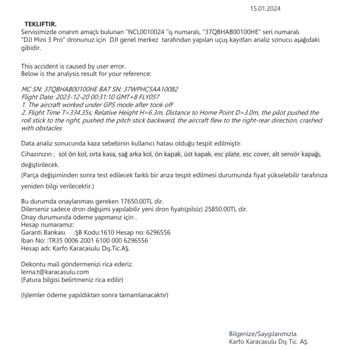
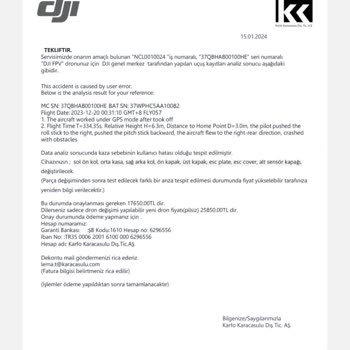
Hello, I encountered an accident with my DJI FPV model, still under warranty and purchased from Media Market. I sent it ...to Karfo Karacasulu service 25 days ago, and there has been no communication regarding the status of my device. On my last call, I learned that the flight records received a negati

dji
View All Complaints