I recently updated my Free Fire app and, since then, have been unable to open it on my mobile device. What might be wrong?
5.420 Views
There are several possible reasons why you might not be able to open the Free Fire app and steps you can take to fix the problem. To begin, a simple restart of your device can often fix short-term problems. It's also important to make sure you have a stable internet connection since Free Fire needs it to work. Try going back and forth between Wi-Fi and mobile data to see if that fixes the problem.
You could also clear Free Fire's data and cache. Go to Settings > Apps & notifications > See all apps > Free Fire > Storage & cache on Android. Then, select Clear Cache and Clear Storage. For iOS users, go to Settings > General > iPhone Storage > Free Fire and choose Offload App or Delete App. Then, install the app again.
Keep in mind that server maintenance could be going on at the moment, which could make it harder for you to play the game. Check the official website or social media pages for Garena Free Fire to see if any updates about maintenance is going on. For Android users, updating Google Play Services might also help, since old services can sometimes make it hard to play games. Tap the menu icon in the Google Play Store app, then choose "My apps & games." If you can, update "Google Play Services."
Clearing the Google Play Store's cache and data may fix some problems, like downloads that don't go through. Pick up your phone and go to Settings > Apps & notifications > See all apps > Google Play Store > Storage & cache. Next, pick Clear cache. After that, turn your device back on and try updating Free Fire again. Also, make sure your device meets the Free Fire minimum system requirements. You can find these on the app page in the Google Play Store or the Apple App Store.
If you appreciate these tips, feel free to share your thoughts in the comments.
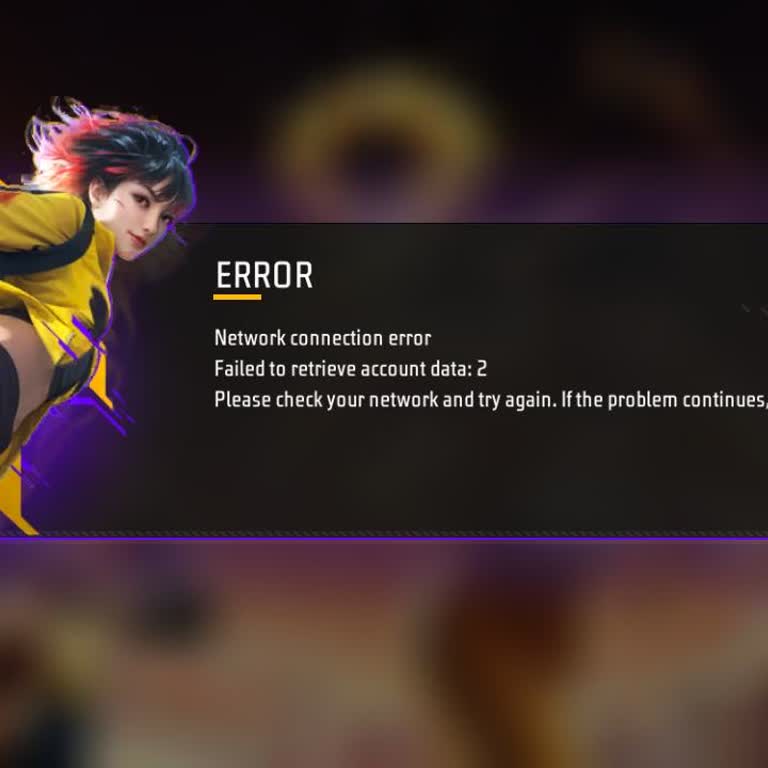
For a long time I have been playing Garena Free Fire on my Android phone, a Vivo Y20. Since 12 July, I have not been abl...e to log in to my account. Every time I try to open the game, a window pops up on the screen saying “ERROR – Network connection error – Faile kid to retrieve account data: 2” and t
For a long time I have been playing Garena Free Fire on my Android phone, a Vivo Y20. Since 12 July, I have not been abl...e to log in to my account. Every time I try to open the game, a window pops up on the screen saying “ERROR – Network connection error – Failed to retrieve account data: 2” and the
I am an active Free Fire player on Android and I am having a serious problem with my account. My old game ID is 30425591...28 and it is in the old version of the game. When I try to log in now, instead of opening my old account, the game creates and opens a completely new account, so my main ID does no
I am experiencing an issue with Free Fire on my Android phone, which I downloaded from the Google Play Store. As of toda...y, the game no longer opens properly and gets stuck on the loading screen, preventing me from accessing my account or playing the game. Before submitting this complaint, I tried s
I am a Garena Free Fire player and I play on an IQ Z10R Android device. My in-game ID is 1244459973. While I was playing... in a trending match and hitting headshots, a problem started and since then the game has not been working normally. Right now Garena Free Fire opens on my phone, but I cannot actu
For about a week, whenever I try to open Free Fire on my Redmi 13 Pro 5G phone, I receive an error message that says “do...wnloadfeilrf,” and the game does not open at all. I was previously able to play without any issues, but because of this error, the game no longer launches and I cannot access my ac
I am a Free Fire player from India using an Android phone, and for some time now I have been completely unable to open t...he game. I downloaded the game from the Google Play Store, and every time I try to launch it, I receive the same error message: “failed to retrieve version config: 2,” after which
I have been unable to access my Garena Free Fire account for the last 2 days due to an “error config 2” message. When I ...try to log in, the interface does not open properly, and I cannot get into my account at all. Because of this error, I am completely unable to use my account and continue playing.
I am a Free Fire player using an Android phone, and for the past few hours today, I have not been able to open the game ...at all. When I try to launch Free Fire, it shows an error message on the screen that tells me to contact the service center, and the game closes without letting me access my accoun
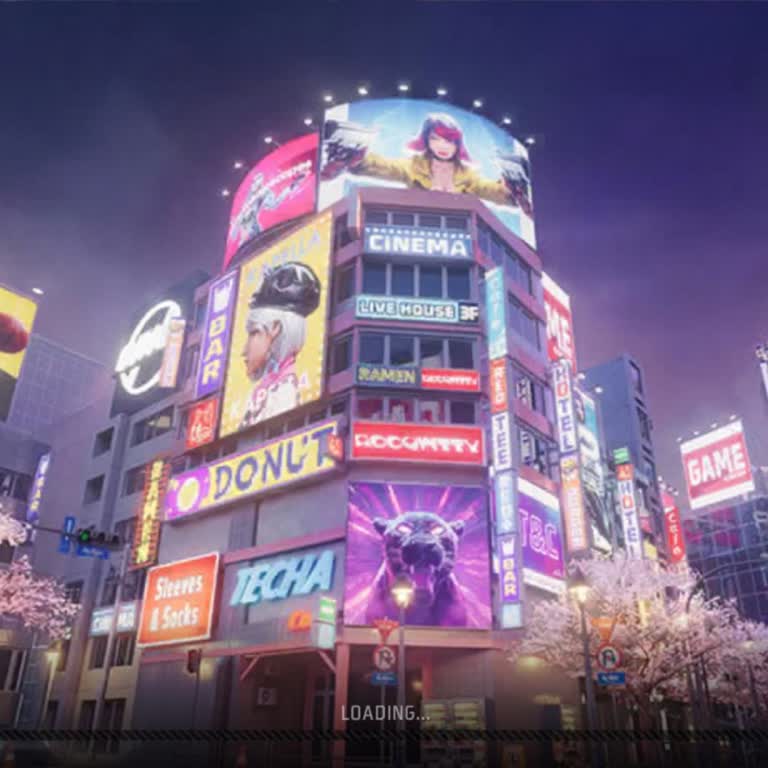
I am an active Free Fire player on an Android phone and, after a recent match where my server crashed, the game stopped ...working properly. Since that crash, Free Fire no longer opens as it should and gets stuck on the loading screen every time I try to launch it. To solve this problem on my own, I ha
I am unable to update the Garena Free Fire game on my Redmi A3 phone through the Google Play Store. When I go to the upd...ate section, I receive an error message and the update does not complete, which prevents me from accessing the game properly. This issue is still ongoing, and I have been unable t
Free Fire is not updating, and the service seems to be down. The server is either very slow or completely unresponsive. ...The game is running very slowly, and it feels like Free Fire might have shut down—there haven’t even been any updates. Has it been removed from India? My signal is full, but the ne
Dear Garena Team, my Free Fire account is experiencing a loading issue. I kindly request your help in resolving this pro...blem. My UID is 2141665002. I have never faced this kind of loading issue before with my account, and I would like to know how to fix it. I humbly request you to look into the issu
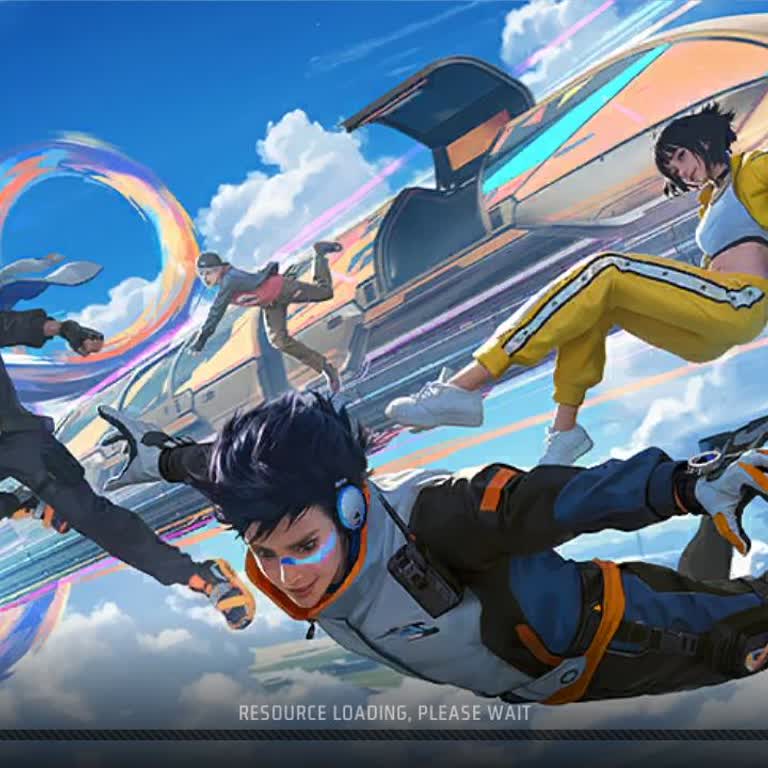
Hello Garena, I have a problem in Free Fire. When I try to open it, the game gets stuck at the resources loading screen ...and doesn’t open. I don’t know why this is happening, but I kindly ask you to fix this issue as soon as possible. I already tried clearing the cache and reinstalling the game, but
My Free Fire account ID is 682902848, and I’ve been unable to log into the game since 9:00 AM today. Every time I try to... enter either the EC or BR servers, I’m stuck on a screen that says “10 Sec.”—but nothing ever loads. I’ve done everything I can to fix this: I checked my internet connection, rest
Dear Garena Free Fire Support Team, I am trying to play Free Fire, but when I start the game, it gets stuck on the loadi...ng screen. After some time, I receive an error message that says "Download Failed. Please try again." I have checked my internet connection, and it is working fine. I have also res
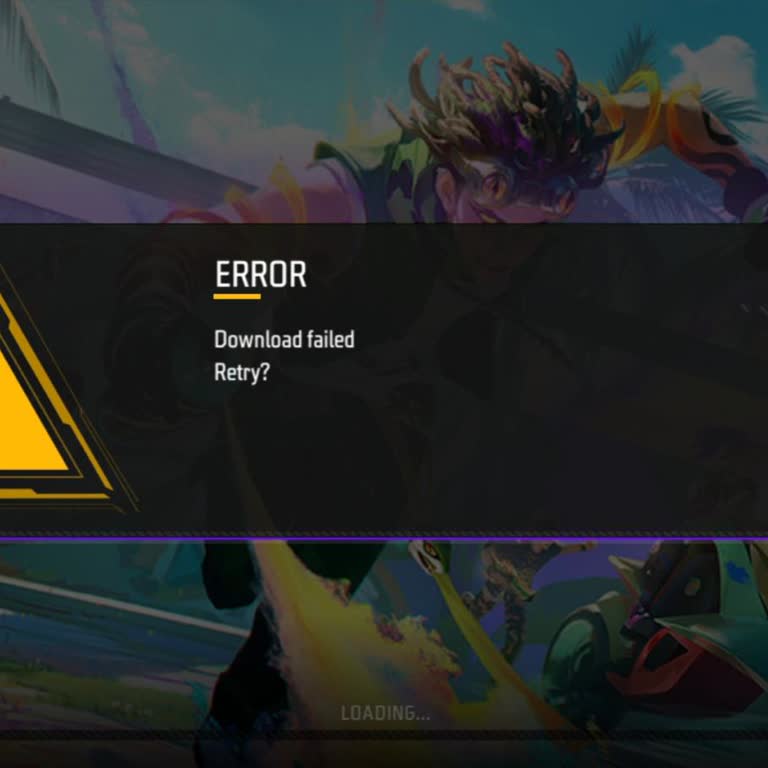
Sir, my Free Fire ID has been removed from my Gmail. When I log in to the email, it opens a new Level 2 ID. I even resta...rted my phone, but I still can’t access my original account. Sir, if there’s anything you can do to help, please do it. I had spent money on that account. Please, I’m requesting yo
Hello Free Fire team, I’m writing to report a major issue that’s ruining my gaming experience. Whether I’m in the lobby ...or in the middle of a match, the game constantly freezes for no reason. This doesn’t happen in any other game—only in Free Fire, which makes it even more frustrating. Here’s what
Dear Free Fire Support Team, After updating my Free Fire account, I noticed that within 3-4 hours, the game language ch...anged on its own to something completely unreadable. The text appears as random characters, making it impossible to navigate or play properly. I have tried restarting the game and
I have been playing Garena Free Fire for 3 years, and my account was linked to Facebook. After taking a break from the g...ame, I tried logging back in, but instead of accessing my original account, it keeps creating a new one. I have spent a significant amount of money on this game, and now I can’t ev
After the latest update in Garena Free Fire, my guest account was deleted, and I can no longer access it. I had been pla...ying on this account for a long time, and losing all my progress is extremely frustrating. I need assistance in recovering my account as soon as possible. There was no warning tha
I have been playing Garena Free Fire for about 5 years, but after recent updates, the game has become riddled with issue...s. I am unable to log in or join teams, which has completely disrupted my gaming experience. These problems have only increased with each update, and it’s becoming unbearable. I h
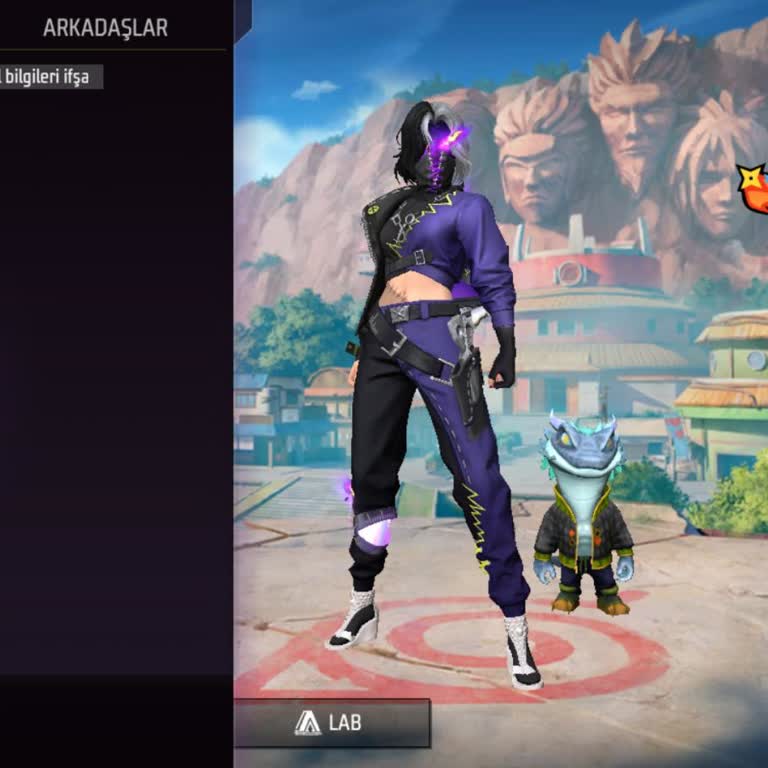
Please help me recover my Garena Free Fire ID. My UID is 2303572836. I kindly request you to respect and restore my Free... Fire ID. Please, Garena, I am the rightful owner. I sincerely ask for my ID to be returned.
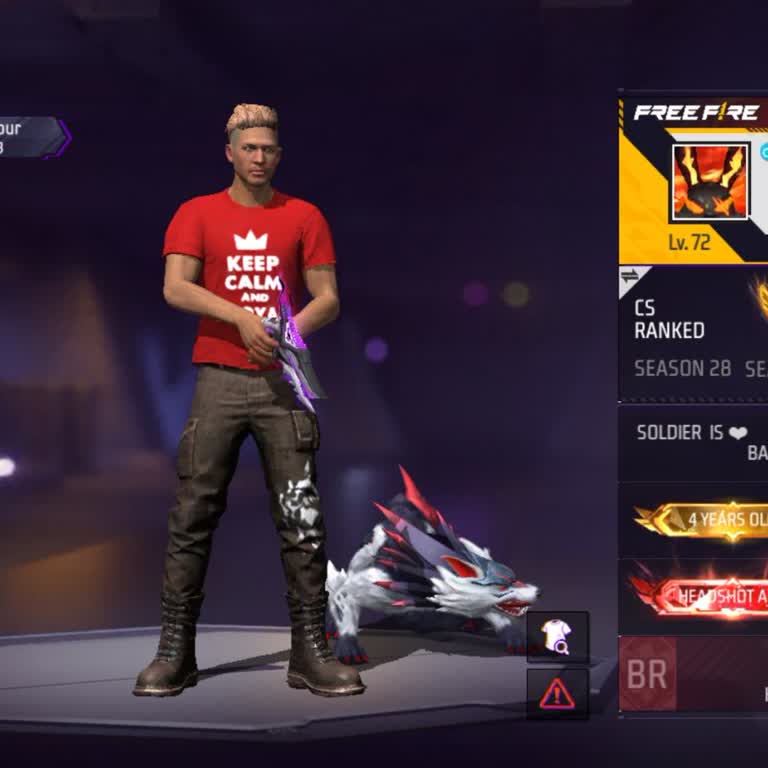
I’ve been playing Free Fire for over four years, but now I’m suddenly unable to join any ranked matches, whether BR or E...C, since the latest update. This access issue is stopping me from playing the game entirely, and I’m frustrated with the lack of support to fix it quickly. I’ve tried multiple time
While playing Garena Free Fire with 4 friends, my account (ID 172399308) was suddenly kicked from the game on October 7,... 2024, at 11:38 PM. Now, I can’t play either solo or with a team. I’ve sent an email to support, but their responses haven’t been helpful. I’m really hoping this issue gets resolve



























7 Comment