Xolvie Resolution Specialist16 Mayıs 2025 09:08
Here's how to do it safely.
1. Driver Update:
Go to the official Dell website and enter your Service Tag or manually select your model.
Navigate to the "Drivers and Utilities" section.
Only download drivers that match your version of Windows.
Before installing, create a system restore point (via the "Recovery" menu) to roll back in case of issues.
2. BIOS Update:
In the list of drivers, locate the BIOS update — typically a .exe file.
Make sure:
The laptop is plugged in;
The battery level is at least 20–30%;
Do NOT turn off power during the update;
All third-party applications are closed.
Then, run the file and follow the on-screen instructions.
After the restart, the BIOS will be updated.
⚠️ Note on BIOS:
The BIOS is a sensitive component. Don’t update it “just in case.” Only do it if there’s a specific reason:
– Improved stability
– Support for new hardware
– Fixes for known issues
❗ If a failure occurs during the update and the device won’t boot, 👉 submit a complaint on Xolvie 👈. This can help you secure warranty service — even if the issue was caused by a BIOS update error.
Vote
Related Complaints
My Dell G16 Won’t Boot After BIOS Update – Repeated Repairs & Poor Support

February 11, 2025 1:29 PM
I can’t believe the quality issues with the Dell G16. This laptop is only 9 months old, yet it has completely failed twi...ce right after Dell’s own BIOS update. So far, the entire machine was replaced once, the motherboard twice, and the keyboard once—and they keep installing used, dusty parts instead
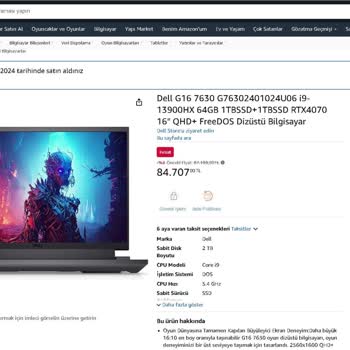
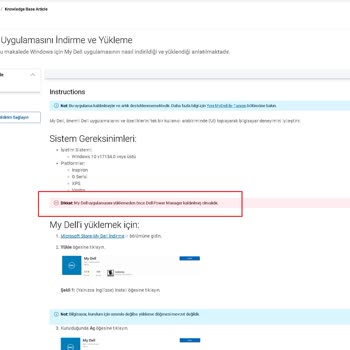
Dell Vostro 16 5630 Faulty Display

March 12, 2024 2:05 PM
I bought a Dell Vostro 16 5630 laptop online on March 5, 2024. The following day, I got the device, but while setting it... up, the screen started flickering. I suspected a driver issue, so I went ahead and updated them. However, to my dismay, the problem persisted. I reached out to the seller and aske
Dell Inspiron 15 3511 Persistent Audio Issues Despite Updates

March 8, 2024 8:45 PM
Ever since I got my hands on the Dell Inspiron 15 3511 laptop, I've been encountering some frustrating issues with the s...ound and speakers. The audio frequently cuts out during the day, which can be quite frustrating. I reached out to them via email to report the issue, and they attempted to resolve
Dell Vostro Laptop Stopped Reading Nvidia Graphics Card Driver

December 13, 2023 1:22 PM
I bought a Dell Vostro laptop on December 4th, 2023, for my office. But, the device was really slow and couldn't open th...e needed Netsis program. We got the laptop specifically for using Office and Netsis programs. Compared to a brand-new device, it was running really slow. The Dell salesperson at th

Dell
View All Complaints