Xolvie Resolution Specialist31 Ocak 2024 06:16
If your Steam game is having trouble running in fullscreen mode, you can try a few troubleshooting steps to resolve the problem.
• Consider using the Alt + Enter keyboard shortcut to switch between fullscreen and windowed mode in most Windows games. Pressing Alt + Enter should take your game into fullscreen mode, and pressing the same keys again will return it to windowed mode.
• Look in the game's options or settings menu for a specific fullscreen mode toggle. This option is typically found in sections labeled " display," video, "game," or "graphics." If you cannot find a fullscreen option, try pressing the F11 key instead. Keep in mind that pressing F11 may result in stretched or pixelated graphics, or the game may not fit properly on your screen.
• You can also try changing the resolution in the game's settings to see if that resolves the fullscreen issue. Try different resolutions, including your native screen resolution, to see if anyone setting improves the problem.
• Some games provide a borderless windowed mode that closely resembles fullscreen but is not true fullscreen. If your game has this option enabled, try turning it off to see if it helps.
Have more to contribute? We'd love to hear from you in the comments.
Vote
Related Complaints
Steam-Purchased Rainbow Six Won’t Launch on Ubisoft

January 25, 2025 12:38 PM
I purchased Rainbow Six Siege on Steam, expecting to play it directly from there. Instead, I was forced to link my accou...nt to Ubisoft, which I reluctantly did—but the game still won’t launch. I have reached out to Ubisoft support multiple times, and their responses have been nothing short of dismiss
Unable to Launch Prototype 2 on Steam – Requesting Refund and Support

October 16, 2024 7:37 PM
I recently downloaded Prototype 2 from Steam, but the game has issues and won’t start. I’ve tried all necessary verifica...tions, yet I still can’t access the game. I’ve submitted a refund request and hope it will be processed soon. Has anyone else experienced this problem with Prototype 2? Any advice
Steam and Steam Lidio Unauthorized Charges: Please Refund ASAP

November 2, 2023 12:02 AM
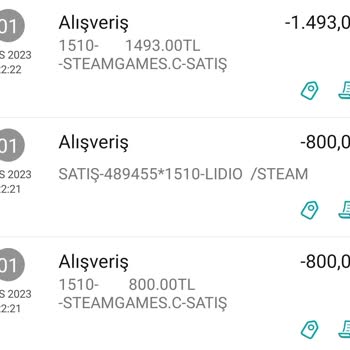
I'm really shocked and frustrated because Steam and Steam Lidio took out about 3,000 TL from my account without my permi...ssion. It's really shocking that there was no notification or confirmation for such a large amount being deducted. What's even more upsetting is that it seems like I can't argue wi

Steam
View All Complaints